
Image uploads and image generation are separate activities in ChatGPT. If a reference photo will not attach, first check the file, upload method, and account notice. Do not assume an image-generation quota explains an attachment error.
The official image-input guidance reviewed for this article lists PNG, JPEG, and non-animated GIF support and a 20 MB limit per image. The number of images that work in a conversation can depend on image size and accompanying text. Use the current account notice for additional restrictions.
Contents
- Identify what failed
- Prepare a useful reference image
- Troubleshoot the upload step by step
- Upload several images with clear labels
- Improve recognition before changing plans
- Use references for image editing carefully
- Protect private information
- A worked example with a chart screenshot
- Keep a reference set organized
Quick answer
Image uploads and image generation are separate activities in ChatGPT. If a reference photo will not attach, first check the file, upload method, and account notice. Do not assume an image-generation quota explains an attachment error.
Identify what failed
| Symptom | Check first |
|---|---|
| A single photo will not attach | Format, size, and whether it opens normally |
| Several photos fail together | Quantity and combined request complexity |
| Upload limit notice appears | The named account allowance and retry information |
| Image attaches but text is misread | Resolution, crop, rotation, and legibility |
| Photo is accepted but the answer is vague | The question and relevant visible detail |
An image can attach successfully while still being unsuitable for the task. Upload success does not prove that small text or every object was interpreted correctly.
Prepare a useful reference image
Keep the original file and create a working copy. Correct its orientation, crop to the relevant area, and remove unnecessary private details.
For a document photo, use even lighting and keep the page flat. For a product, show the identifying details clearly. For a screenshot, preserve enough interface context to explain where the problem occurs.
If you compress the image, inspect the result. Aggressive compression may make the text unreadable even when the file is comfortably below the size limit.
Troubleshoot the upload step by step
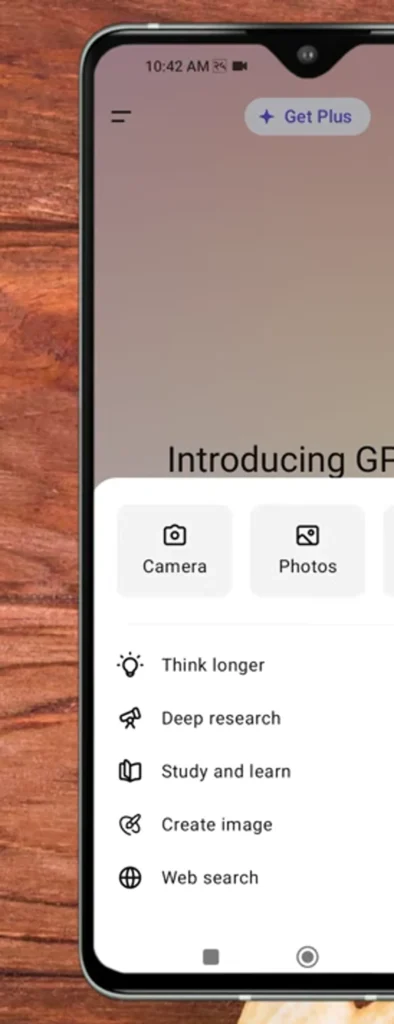
- Confirm the correct account and plan.
- Check the exact error wording.
- Verify the image’s format and size.
- Try one small, non-sensitive image.
- Use a supported attachment route in the current client.
- Read any displayed retry time and check service status if needed.
Do not repeatedly submit a large batch while diagnosing. A one-image test helps distinguish a specific file problem from a broader account or service issue.
If only one device fails, compare the current web or mobile client where supported. Note the app version and upload method for a support request.
Upload several images with clear labels
Explain what each image represents and the order in which to examine them. Use labels such as front, back, close-up, or step one rather than assuming the assistant understands the sequence.
Ask a narrow question: “Compare the connector visible in images one and two” is easier to verify than “Tell me everything about these products.”
For several document pages, preserve page order and indicate any missing page. If a conclusion depends on unseen content, ask the assistant to flag the gap rather than infer it.
Improve recognition before changing plans
If a receipt is misread, crop the totals and provide a sharper image. If a chart is confusing, include its axis labels and legend. If a screenshot is too small, capture the relevant panel directly.
Ask the assistant to transcribe visible text first, marking uncertain characters. Compare that transcription before requesting calculations or conclusions based on it.
For a table with important numbers, a spreadsheet or text export may be a better input than a photograph. Choose the format that preserves the evidence.
Use references for image editing carefully
State which details must stay unchanged and which should change. For a product picture, specify that the shape, label, color, and components must match the authorized reference if those details matter.
Review the edited image against the original. A visually attractive result can introduce an extra button, changed packaging, or altered face.
Do not use generated edits as proof of a product feature or physical result. Keep explanatory illustrations separate from documentary images.
Protect private information
Crop out addresses, payment data, personal identifiers, and unrelated messages before uploading. Obtain permission for other people’s photographs when appropriate.
Review the account’s data settings and your organization’s rules. A paid plan does not by itself establish permission to upload client or employee information.
For an error report, use a redacted screenshot showing the notice and relevant interface. Support usually does not need the entire private photo collection.
A worked example with a chart screenshot
Suppose you want help interpreting a sales chart. Include the title, legend, axis labels, and date range. A crop showing only the colored lines removes the information needed to explain them.
Ask the assistant to identify the visible labels before interpreting the trend. Check that it reads units and dates correctly. If precise values matter, supply the underlying data rather than asking it to estimate numbers from pixels.
If the image remains unclear, improve the input instead of repeatedly requesting more confident analysis. A sharper source is more useful than a stronger instruction to be accurate.
Keep a reference set organized
For a product comparison, name images consistently and record which product each one shows. Include one overview and the relevant close-ups rather than dozens of unlabeled photos.
Tell the assistant which details matter and which are incidental. If packaging changed between versions, provide the version information explicitly. The model should not have to infer a release year from an ambiguous label or background object.
Related guides: ChatGPT File Upload Limits and How to Fix Upload Errors · ChatGPT Plus Image Generation Limits and How to Plan Around Them · What a ChatGPT Attractiveness Test Can Actually Tell You
Order on WhatsApp
Get your subscription activated in minutes — pay in AFN with HesabPay, MTN MoMo or at our Kabul office.
💬 Order on WhatsAppFrequently asked questions
What is the image size limit
The official guidance reviewed lists 20 MB per image. Check current documentation if the product changes.
Is there one fixed number of photos per message
The guidance describes factors including size and accompanying text. Reduce the batch when the request fails.
Does a successful upload guarantee accurate reading
No. Verify small text, numbers, and important visual details.
Will deleting chats immediately reset uploads
Do not assume so. Identify the named restriction and use the account’s notice to determine the appropriate action.