
ChatGPT can accept video attachments through supported methods on some accounts and platforms, according to the current official image-input guidance. That does not mean every video is analyzed completely or that its audio is interpreted accurately. A video link, an uploaded clip, a transcript, and live camera sharing are different inputs.
Before asking for a summary, establish what the assistant can actually access. Otherwise, a fluent response may be based on the title, a description, or a partial transcript instead of the footage.
Contents
- Match your input to the question
- Can ChatGPT watch a YouTube link
- How to analyze an uploaded clip
- Use transcripts for speech focused tasks
- Use frames for visual questions
- A prompt for a careful video summary
- Check the answer before using it
- A worked example with a software tutorial
- Keep observation separate from explanation
Quick answer
ChatGPT can accept video attachments through supported methods on some accounts and platforms, according to the current official image-input guidance. That does not mean every video is analyzed completely or that its audio is interpreted accurately. A video link, an uploaded clip, a transcript, and live camera sharing are different inputs.
Match your input to the question
| Input | Suitable question | Important limitation |
|---|---|---|
| Video link | What public information is available about this video | Link access does not prove playback |
| Transcript | What arguments or instructions are spoken | Visual events may be absent |
| Uploaded clip | What happens in the supplied footage | Coverage and audio understanding can be incomplete |
| Selected frames | What is visible at these moments | Events between frames are missing |
| Live camera or screen sharing | What can you observe during the session | Separate availability and usage conditions |
Ask the assistant to name the input it used. “I analyzed the video” is too broad if it only received the transcript.
Can ChatGPT watch a YouTube link
Do not assume that pasting a YouTube URL gives the assistant the entire audiovisual content. Available browsing tools, transcript access, account features, and restrictions affect what it can retrieve.
A useful instruction is: “Tell me whether you can access the transcript, the actual footage, or only page information. Summarize only the material you can access and label missing parts.”
If it cannot obtain the content, paste a transcript you are authorized to use, upload a permitted clip where supported, or supply relevant screenshots. Do not ask it to fill in unseen events from the title.
How to analyze an uploaded clip
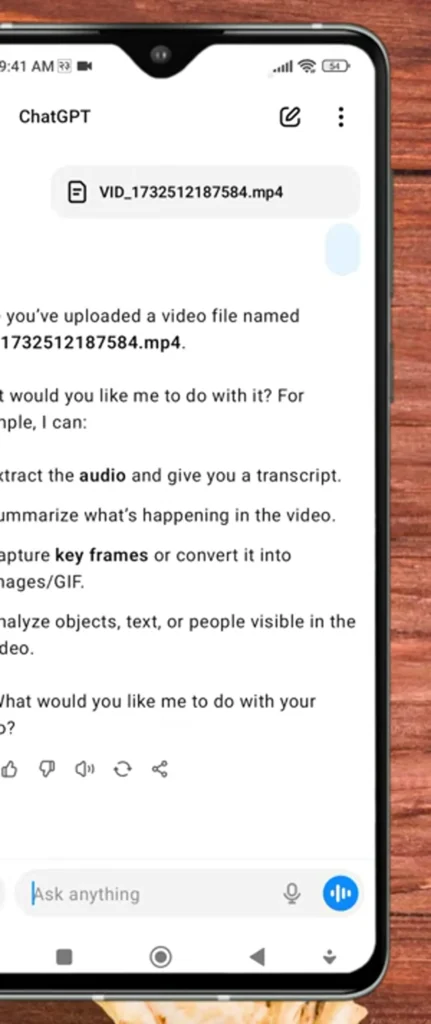
- Use footage you own or have permission to share.
- Trim the working copy to the segment relevant to your question.
- State the task, such as describing a process or reviewing a presentation.
- Ask for observations with timestamps where available.
- Require uncertain or unobserved moments to be marked clearly.
- Check important conclusions against the recording.
Keep the original recording unchanged. A trimmed clip is useful for analysis but may omit context that changes the interpretation.
If the upload method will not select a video from Photos, official guidance suggests checking whether Files offers a supported route. Availability can differ across clients and accounts.
Use transcripts for speech focused tasks
For an interview, lecture, or podcast, the spoken words may matter most. A transcript lets you ask for an outline, questions, decisions, or disputed claims.
Keep timestamps and speaker labels if they are available. Ask the assistant to separate direct statements from its own interpretation. Names, numbers, and specialist terms should be checked against the audio.
A transcript cannot reliably explain a silent demonstration. If a speaker says “turn this part,” provide a frame or description showing which part they mean.
Use frames for visual questions
For a software tutorial, select frames showing the starting screen, each important action, and the result. Label their order and explain whether any steps are omitted.
Ask questions tied to visible evidence: “Which button is highlighted in frame three?” is narrower than “Explain everything the instructor did.” Keep text large enough to read and remove private notifications or account details.
For sports, safety incidents, or rapid motion, a few still frames may miss the decisive event. Avoid presenting sparse screenshots as a complete record.
A prompt for a careful video summary
“Analyze only the attached material. Start by stating whether you used footage, audio, a transcript, or still frames. Give a short summary, then list key events with timestamps if supported. Separate visible observations from spoken claims. Mark anything you could not inspect. Do not invent dialogue, actions, or missing sections.”
For a tutorial, add: “List prerequisites, steps, and the final result. Flag any step that relies on information outside the supplied segment.”
For a meeting, add: “Separate decisions, proposals, and action items. Do not assign an owner or deadline unless the recording supports it.”
Check the answer before using it
Compare the beginning, middle, and end of the summary with the source. Check any consequential timestamp, number, and attributed statement.
If the response misses a late section, ask which parts were processed rather than assuming the entire video was covered. For long recordings, analyze logical segments and reconcile them afterward.
Use summaries to find relevant moments. For a decision with serious consequences, review the original footage yourself and use an appropriate specialist when needed.
A worked example with a software tutorial
Suppose you need instructions from a tutorial that shows a menu change while the narrator says, “Choose this option.” A transcript alone leaves the option unidentified. Provide the relevant frame and timestamp, then ask the assistant to combine the visible label with the spoken instruction.
Check that the tutorial uses the same application version and platform as your own. A correct description of an old interface can still be unusable today. If the menu has changed, use current product documentation to verify the replacement step.
For an article, cite the video as a source only for what you actually inspected. Do not say you watched the complete tutorial if you only reviewed a transcript or a short clip.
Keep observation separate from explanation
A video may show a person clicking a button, but it may not show why an error occurred. Ask for two separate outputs: what is visible and what explanations remain possible.
This matters for troubleshooting and incident review. A plausible story about an unseen event should stay a hypothesis. Provide additional footage or logs when the conclusion depends on information outside the clip.
Related guides: ChatGPT File Upload Limits and How to Fix Upload Errors · Can ChatGPT Transcribe Audio and How to Check the Result · ChatGPT Usage Limits and What Each Message Means
Order on WhatsApp
Get your subscription activated in minutes — pay in AFN with HesabPay, MTN MoMo or at our Kabul office.
💬 Order on WhatsAppFrequently asked questions
Can ChatGPT summarize a video without a transcript
Potentially, through supported video analysis. Establish what the account can process and verify the result.
Is a video attachment the same as live video in Voice
No. They are separate features with different access and usage conditions.
Why did the answer describe a scene that never happened
It may have inferred missing content or misinterpreted the input. Ask for evidence and review the original segment.
Can I rely on timestamps automatically
Check them. A timestamp is useful only when it points to the supporting event in the original recording.