
To remove a conversation, use its Delete control. To remove all chats, use the bulk deletion option in Data controls and read the confirmation carefully. If you only want a tidier sidebar, archive instead.
Clearing chat history is not the same as deleting every saved file, changing memory settings, disconnecting apps, or cancelling a subscription. Decide which information you want to remove before making a broad change.
Contents
- Choose the action that matches your goal
- Delete a single conversation
- Archive instead of deleting
- Clear all chats carefully
- Check saved files separately
- Review memory and connected apps as separate controls
- Understand the retention description
- Troubleshoot a conversation that remains visible
- A worked cleanup plan
- Verify the account scope
Quick answer
To remove a conversation, use its Delete control. To remove all chats, use the bulk deletion option in Data controls and read the confirmation carefully. If you only want a tidier sidebar, archive instead.
Choose the action that matches your goal
| Goal | Action to investigate |
|---|---|
| Hide a conversation from the normal sidebar | Archive it |
| Remove an unwanted conversation | Delete it |
| Remove all conversations in the selected scope | Bulk deletion in Data controls |
| Remove a separately saved file | Delete it in its saved-file location |
| Stop future app access | Manage the connected app |
| Stop subscription renewal | Cancel through the billing platform |
A clean sidebar does not prove that all associated data has been removed. Check the relevant settings and saved-file locations separately.
Delete a single conversation
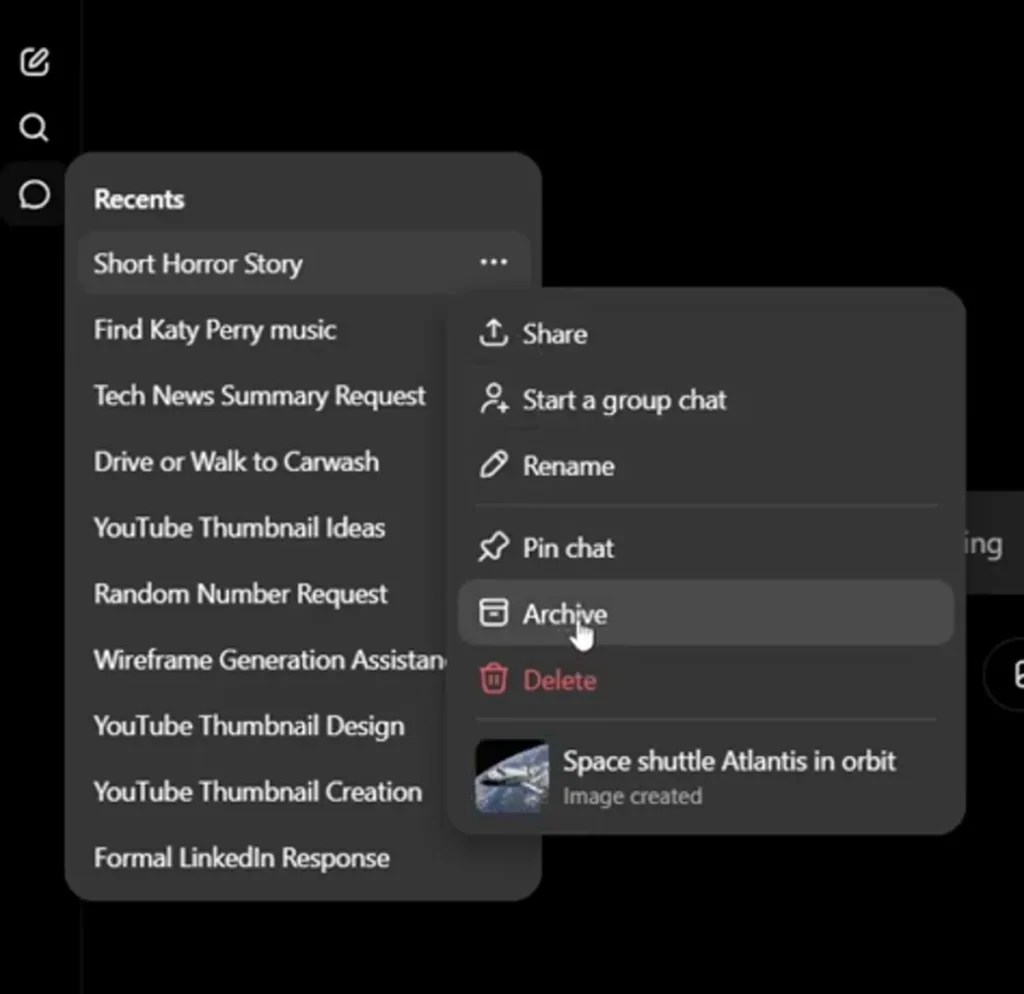
Open chat history, find the conversation, open its options menu, and select Delete. Confirm only after checking the title and content.
On mobile, the official instructions also describe pressing and holding a conversation title to find Delete. Menu wording and placement can vary across app versions.
If you may need the information later, save an appropriate copy before deleting. Do not rely on support being able to restore the conversation.
Archive instead of deleting
Archive is useful for completed work you want to keep without leaving it in the main sidebar. The official guidance says archived chats remain searchable and follow the retention rules for saved chats.
To manage them, open Settings and Data controls, then look for Archived chats or the corresponding view. Unarchive a conversation when you want it back in the regular history.
Before archiving a conversation tied to an ongoing workflow, check whether that workflow depends on it. Tidying history should not interrupt a task you still use.
Clear all chats carefully
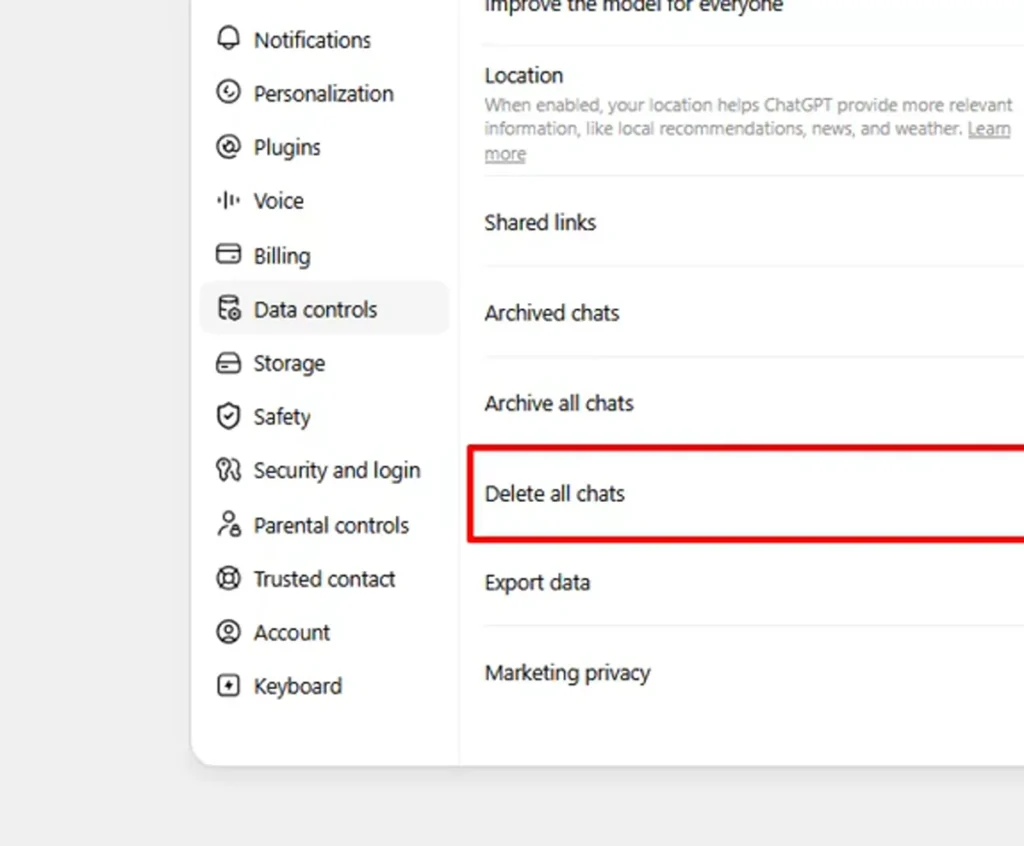
- Confirm the account and workspace you intend to manage.
- Save any conversations or outputs you need to retain.
- Open Settings and Data controls.
- Select Delete all chats.
- Read the scope and confirmation before continuing.
- Verify the resulting history view.
Bulk actions may affect project conversations within the account or workspace scope. Read the interface rather than assuming only visible sidebar items are included.
If your goal is simply to reduce clutter, consider archiving instead. Choose deletion when removal is the actual intention.
Check saved files separately
A document uploaded or created during a chat may also exist in Library or Space. Deleting the chat does not necessarily delete that separately saved copy.
Inspect the relevant saved-file location and remove the file there if needed. Keep track of other copies, such as a download on your computer or an attachment stored by another app.
For a project or custom GPT, check the files attached to that resource as well. The relationship between a conversation and a reusable knowledge file is different from an ordinary message.
Review memory and connected apps as separate controls
If your goal is to stop personalization from particular information, inspect the product’s current memory controls. Do not assume a history action changes every other data setting.
If a conversation used a connected service, removing the chat does not delete the original email, document, or calendar event from that service. Manage the source in its own application when that is what you intend.
Disconnecting an app concerns future access. It does not automatically remove information already included in earlier conversations.
Understand the retention description
Official guidance states that deleted saved chats disappear from the account view immediately and are scheduled for permanent deletion within 30 days, with stated legal, security, and de-identification exceptions. Workspace retention policies can also matter.
Do not describe clicking Delete as proof that every backend copy vanished at that moment. For organizational requirements, use the applicable agreement and administrator guidance.
Troubleshoot a conversation that remains visible
Check the correct account and workspace, refresh the interface, and compare another supported client. A stale display and a failed deletion are different possibilities.
Record the conversation title, platform, app version, timestamp, and exact error without sharing private message content unnecessarily. If the issue persists, use official support.
Do not repeat bulk deletion while uncertain about the first result. Establish what changed before taking another irreversible action.
A worked cleanup plan
Suppose you want to remove an old client project. First identify the conversations, separately saved deliverables, project attachments, and original files in connected services. Decide which copies must be retained for your records before deleting anything.
Delete the relevant chat only after saving the material you need. Then inspect the saved-file location and the project itself for copies you also intend to remove. If the original document remains in another service, manage it there according to the client’s requirements.
Keep this inventory short and specific. A broad “clear everything” action can remove useful records while leaving an overlooked copy elsewhere.
Verify the account scope
People who use personal and work spaces should confirm the selected workspace before a bulk action. The same display name or browser window can make the scope easy to misread.
If an organization controls retention, ask the administrator which actions are available and what they mean under the workspace policy. Do not promise immediate complete erasure based only on the disappearance of a conversation from the sidebar.
Related guides: How to Cancel a ChatGPT Subscription on Web iPhone or Android · ChatGPT File Upload Limits and How to Fix Upload Errors · ChatGPT Usage Limits and What Each Message Means
Order on WhatsApp
Get your subscription activated in minutes — pay in AFN with HesabPay, MTN MoMo or at our Kabul office.
💬 Order on WhatsAppFrequently asked questions
Can I recover a deleted chat
The official guidance says deleted chats cannot be restored through ChatGPT or support. Save needed information first.
Does archiving delete a chat
No. It changes where the conversation appears while retaining it in the account.
Does deleting history cancel my subscription
No. Billing is managed separately.
Does deleting a chat remove its saved files
Check separately saved files in Library or Space and files attached to reusable resources. Do not assume the chat action removes them all.